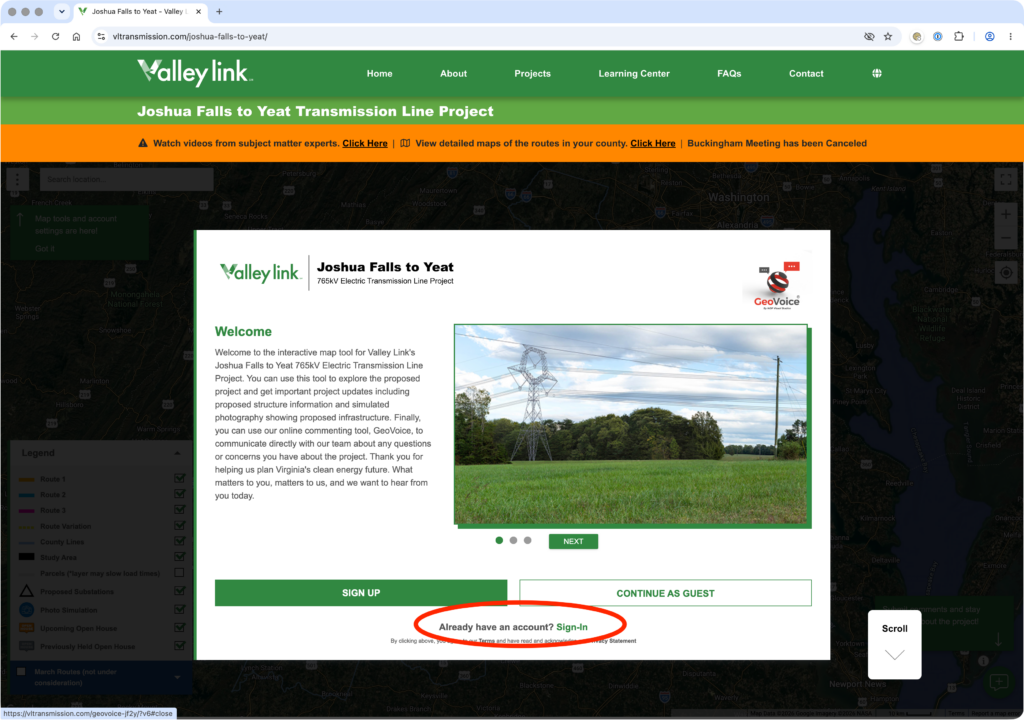
Instructions for Submitting Valley Link Comments
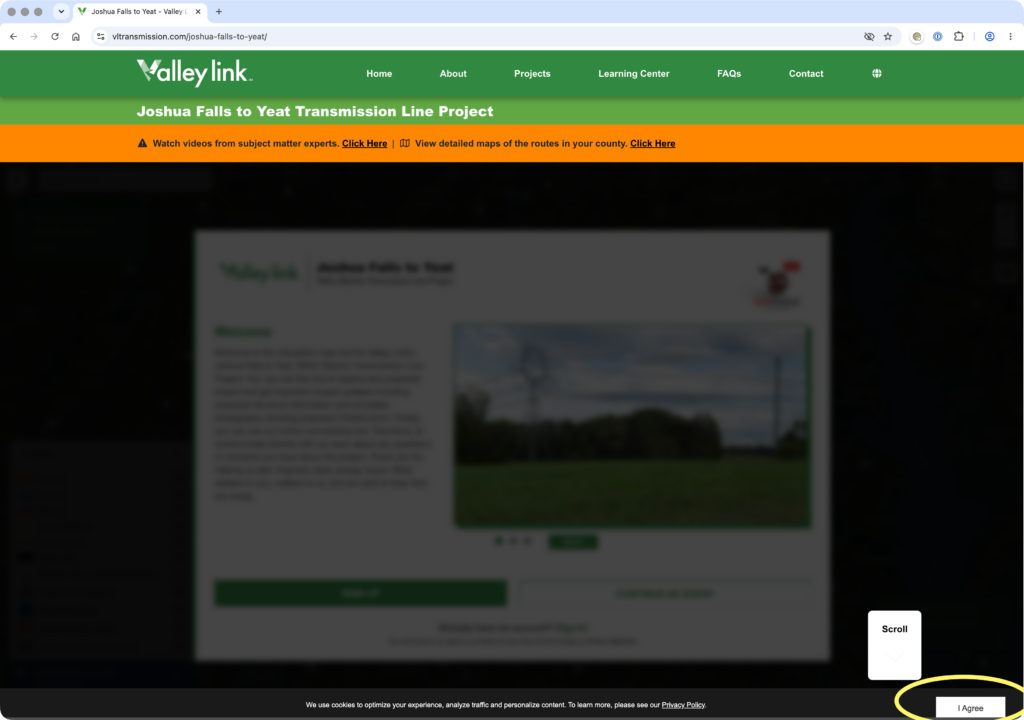
1. Accept cookies, by clicking the button labeled “I Agree” at the bottom right of the page:
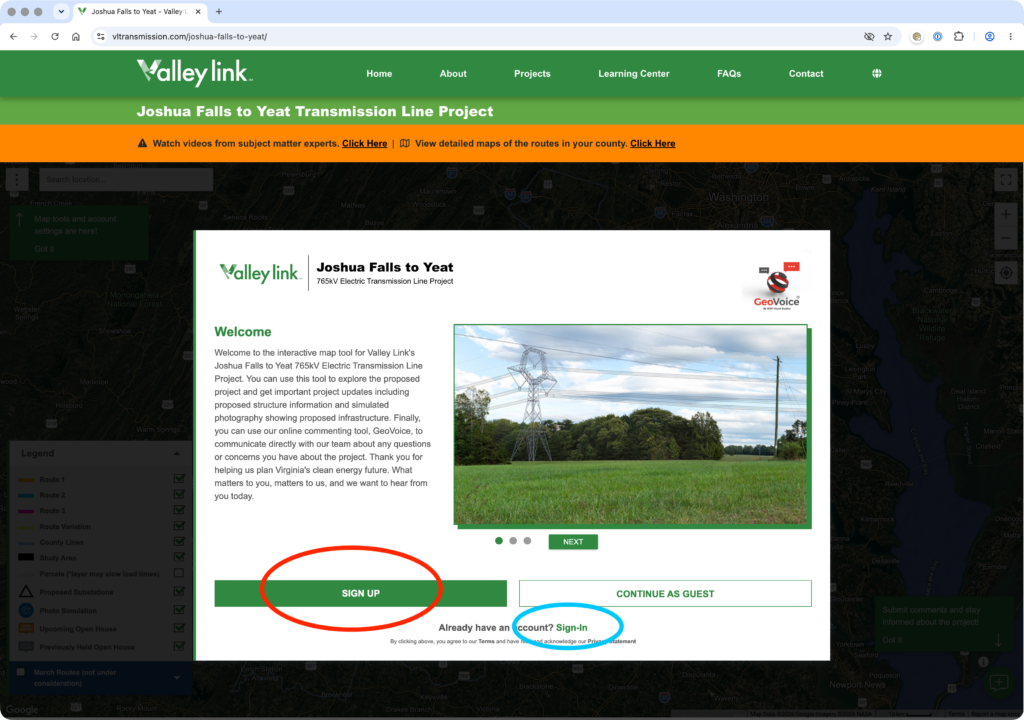
2. Click “SIGN UP” if this is your first time submitting comments. If you previously signed up, click the “Sign-In” link (circled in blue) and proceed to step 6.
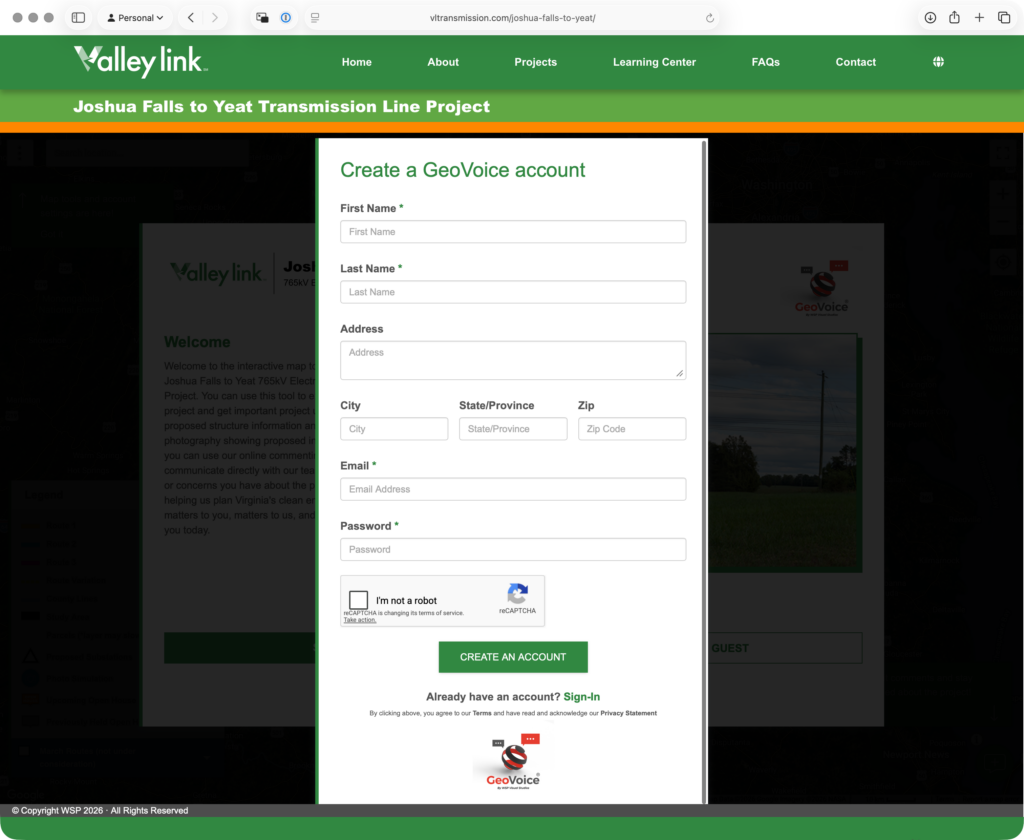
3. To Sign-up, enter your complete this form. It’s important to enter your email address and password as you’ll need to enter them again. Click the box next to “I am not a robot”, then click “CREATE AN ACCOUNT”.
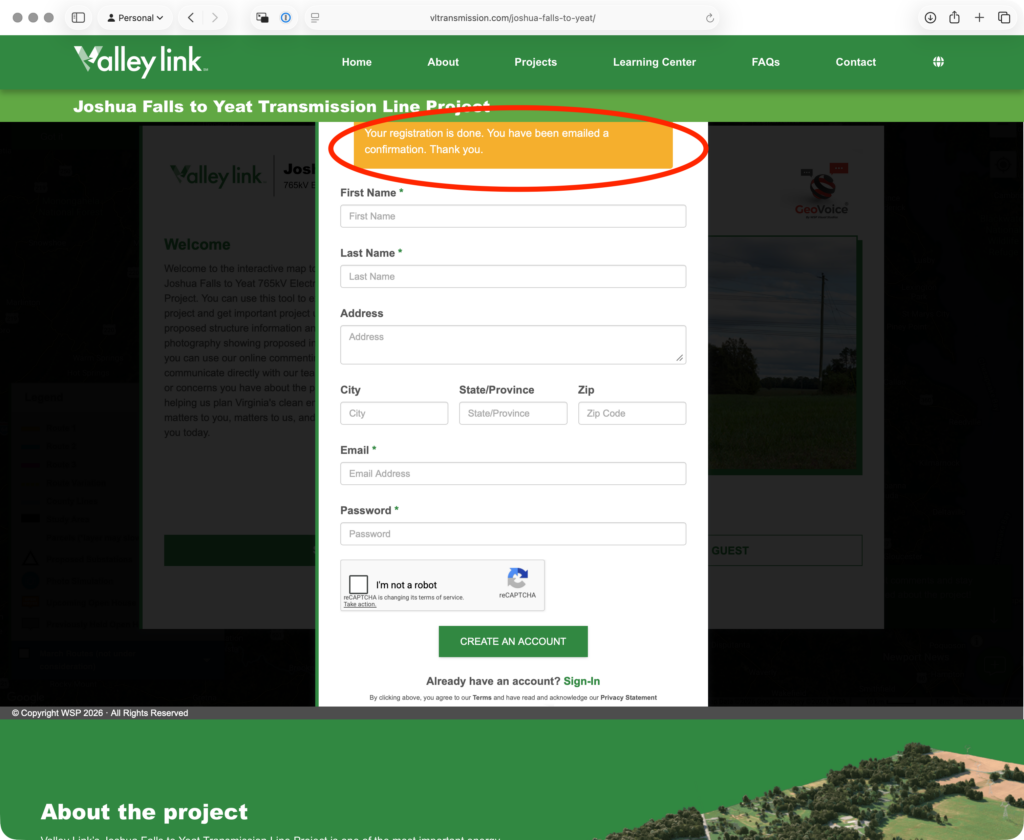
4. After clicking “Create an Account”, you’ll see an orange banner stating that your registration is done and that you’ve been emailed a confirmation:
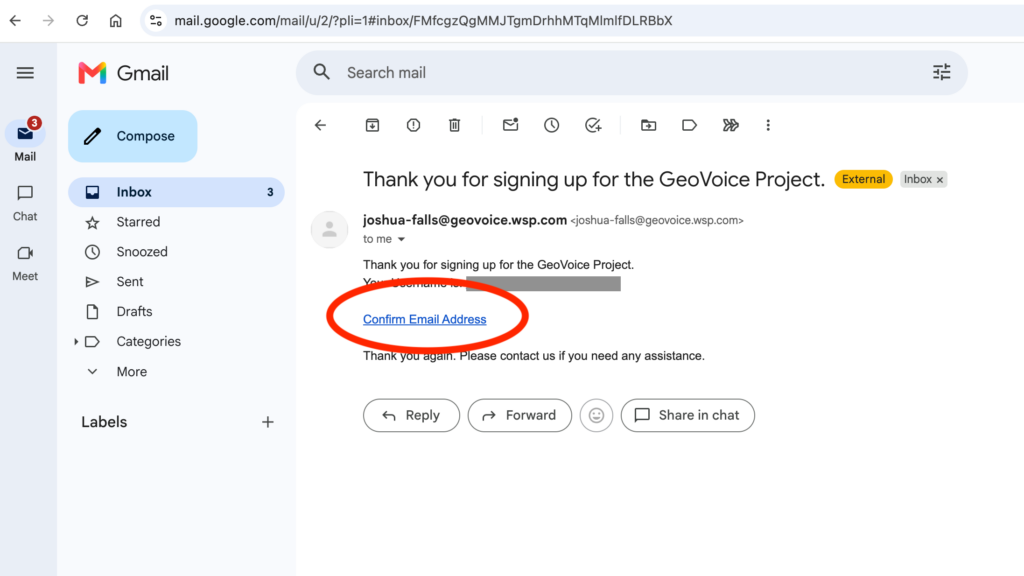
5. Now open your email and look for an incoming email message from joshua-falls@geovoice.wsp.com with the subject, “Thank you for signing up for the GeoVoice Project.”
Be sure to check your “Junk mail” folder if you don’t receive this message after a minute or so.
Click “Confirm Email Address” in the email body and you will be taken back to the Valley Link website.
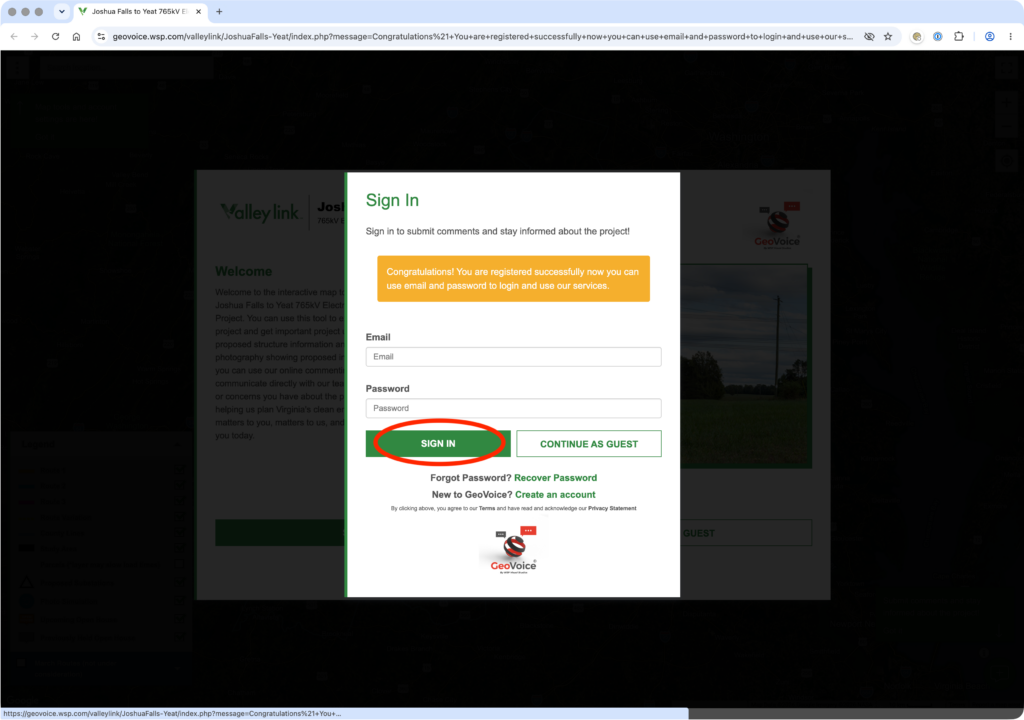
6. Enter the Username and Password you created above or previously, and click “SIGN IN”.
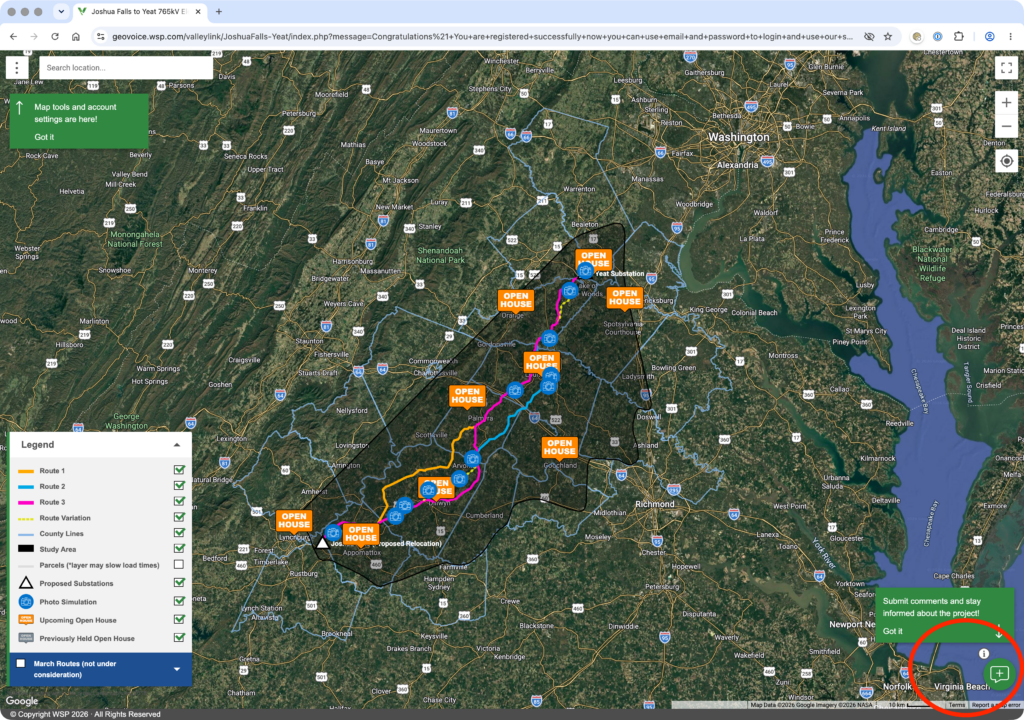
7. After clicking “SIGN IN” you will be taken to the project overview map. Click the green “comment bubble” icon in the lower right (circled in red) to provide your comments:
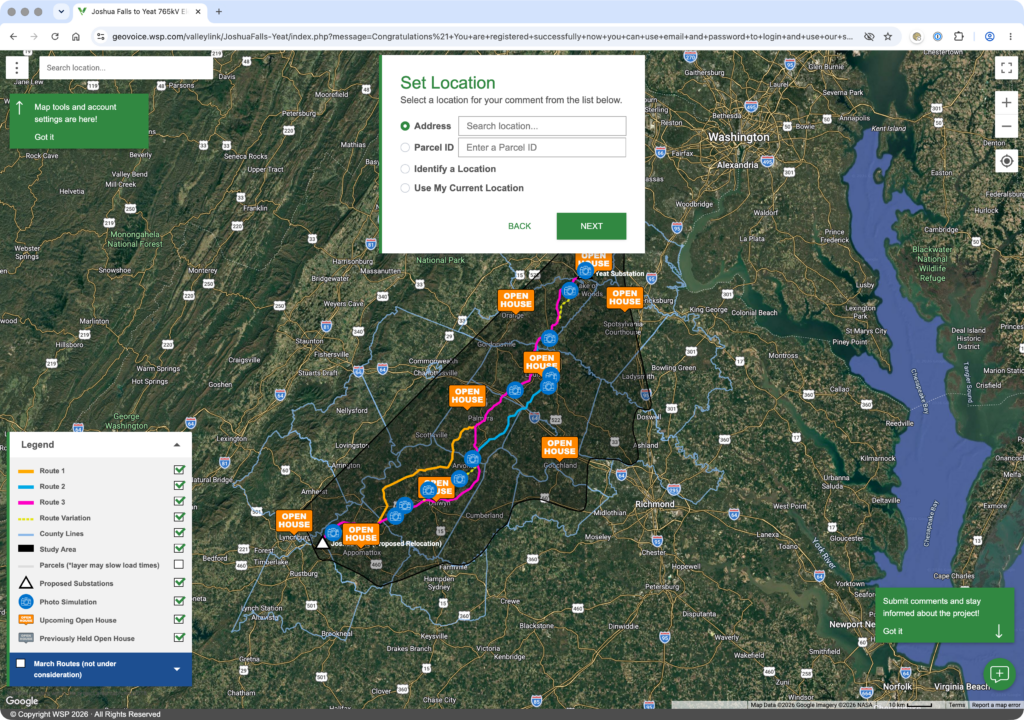
8. Enter your address and click “NEXT”. You do not have to supply a Parcel ID.
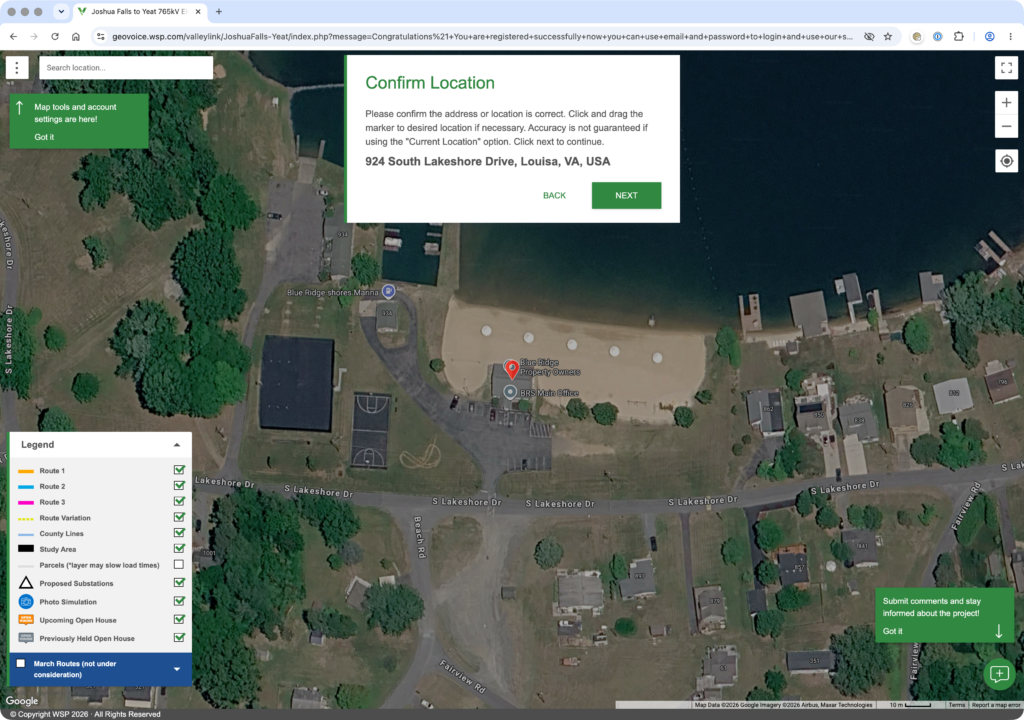
9. You will be shown the location of your address on the map. Click “NEXT”.
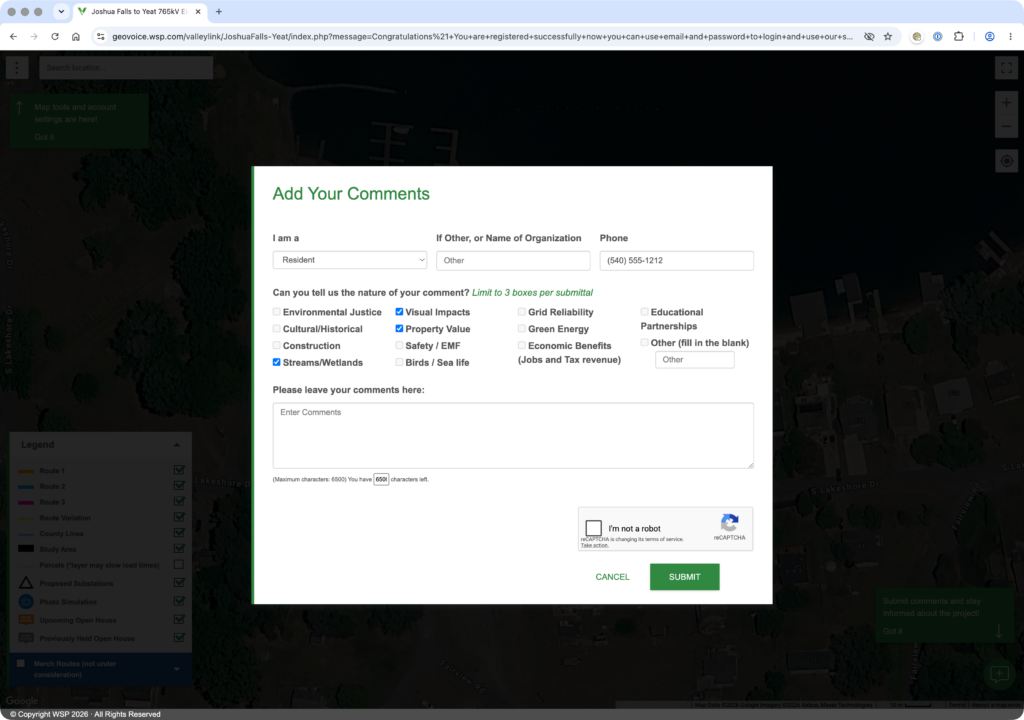
10. Select “Resident” under “I am a”, Provide your phone number, and select up to 3 items for the nature of your comment. It’s suggested you at least select “Visual Impacts” and “Property Value” as these are the strongest cases for BRS.
Enter your comments in the field provided. If you need help starting your comments, use our feedback template.
11. Click “SUBMIT” to send your comments to Valley Link. You should see a message indicating your comments were accepted.
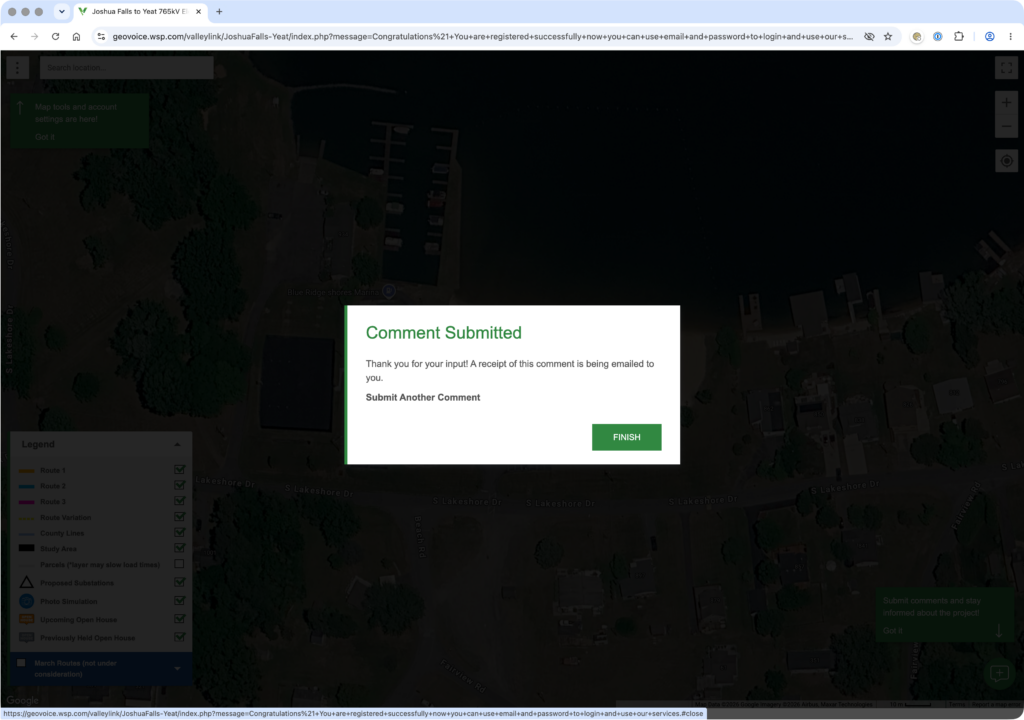
12. Click “FINISH” to return to the map.
If you want to submit additional comments later, you can return to the Valley Link website and click “Sign-In” link circled in red below to sign-in with your email and password.